QR codes for the ad on the car
The ad on the car is the most expensive paper you print: a wrap costs more than every flyer put together and stays on the vehicle for years. What is on it changes faster than it does: the phone number, the offer, the page. A static code holds the first version in its pixels for good. Here the code opens a short link of yours, and what opens behind it you change from the account, without touching the car.
The setup, end to end
- Make one code per vehicle, not one for the whole fleet. Same destination, different source.
- Have it wrapped at the size the reading distance demands: from the pavement, from the lights, from the car behind.
- When the number, the offer or the page changes, change the destination in the account. The car stays as it is.
What the tagged link looks like
https://example.com/quote?utm_source=car-1&utm_medium=qr&utm_campaign=fleetAppended when the code is scanned rather than printed into the image, so the tags stay editable after the artwork is on paper. GA4 has no default channel rule for "qr", so these scans report as Unassigned. Add a custom channel group matching medium = qr to give it a name in your reports.
Show me how5 steps
Step 1 of 5
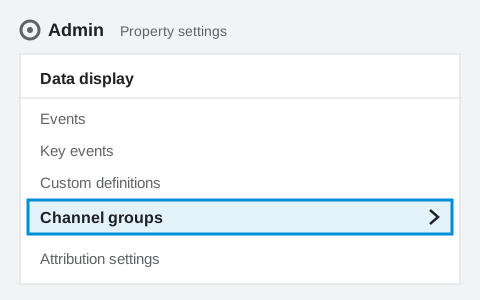
Open Channel groups
In GA4, click “Admin” (the gear, bottom left). Under “Data display”, open “Channel groups”. You need the Editor role or above.
Step 2 of 5
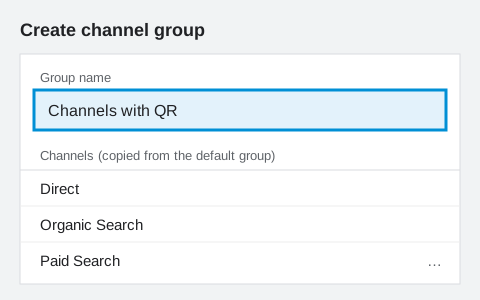
Create a group
Click “Create new channel group” and name it, for example “Channels with QR”. Your first custom group starts as a copy of GA4's default group. A standard property holds two custom groups, so if you already have two, add the channel to one of them instead.
Step 3 of 5
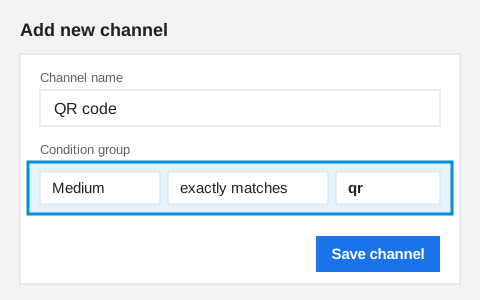
Add a QR channel
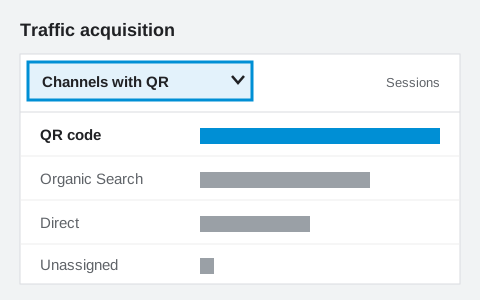
Click “Add new channel” and name it “QR code”. Click “Add condition group”, choose “Medium” and “exactly matches”, type qr, then click “Save channel”.
Step 4 of 5
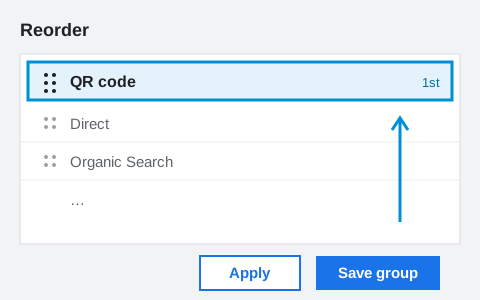
Move it to the top, then save
A new channel lands at the bottom, and GA4 files a session under the first channel that matches. Click “Reorder”, drag “QR code” to the top, click “Apply”, then “Save group”.
Step 5 of 5
Read it in your reports
Open “Reports”, then “Acquisition”, then “Traffic acquisition”. In the table's dimension menu, pick your group. GA4 may list it as “Session custom channel group” rather than by its name. The group applies to past data too.
What goes wrong here
The phone number on the car belongs to whoever answers this year. When they leave, the ad rings somebody else, and the only repair for a static code is a new wrap. A dynamic code opens a page you change: the new number, a form, WhatsApp, anything. The car never finds out.
What it costs
- Live codes
- 3 free, unlimited on Pro
- Scans
- Never capped, any plan
- History
- 7 days free
- Expiry
- None, including after you stop paying
On the car
Read in motion or from the pavement, so it goes large and with strong contrast: dark modules on white, not on the car's colour. The rear is the most-read placement, at the lights. The side is for the pavement. Print one at the chosen size, stick it on temporarily and scan it from the real distance before the wrap is cut.
A common starting point is a code about a tenth as wide as the distance it will be read from. Print one at that size, scan it with the oldest phone you can find, and adjust. No table can answer this for your paper and your lighting.
Show me how to size it5 steps
Step 1 of 5
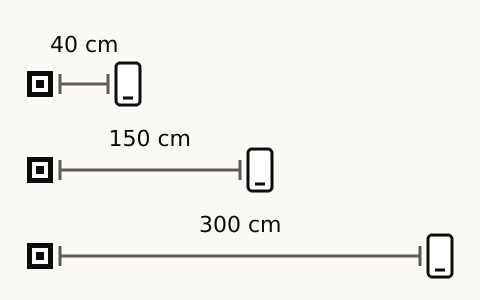
Find the scanning distance
Stand where somebody will stand to scan it, and measure to where the code will be. A table tent or a business card is read from arm's length, a window poster from the pavement, a car from the pavement or the car behind.
Step 2 of 5
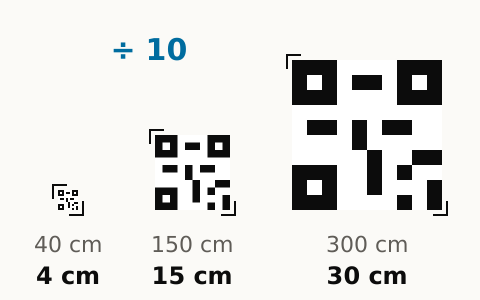
Make it about a tenth of that distance
A common starting point is a code about a tenth as wide as the distance it is read from. From forty centimetres that is about four, from three metres about thirty. Keep a clear white margin around it.
Step 3 of 5
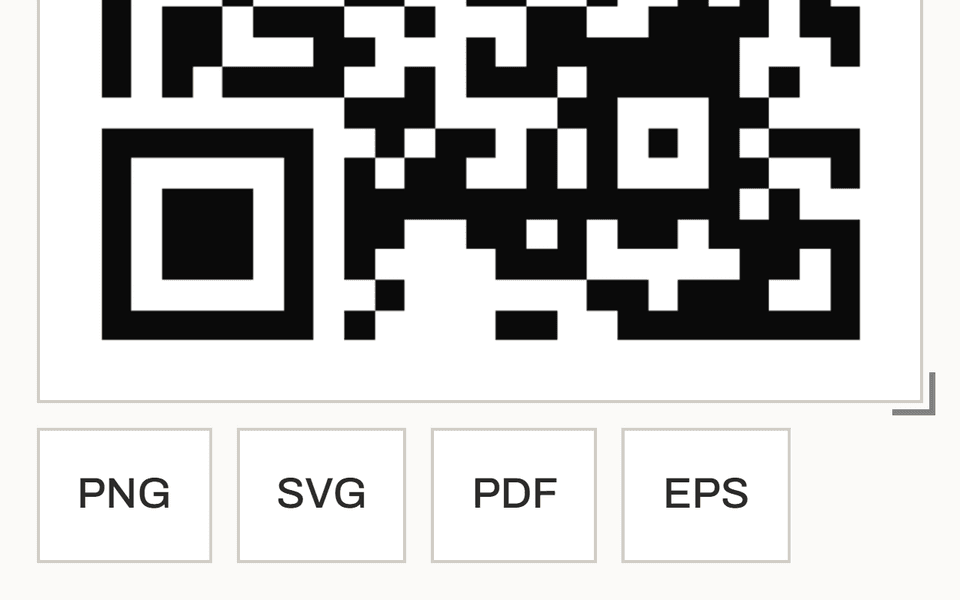
Download the file that fits the size
For a flyer, a card or a table tent, the PNG is enough. For a poster or a car, take the SVG or the PDF, which stay sharp at any size. On a Free account the code's page offers the PNG. SVG, PDF and EPS come with Pro.
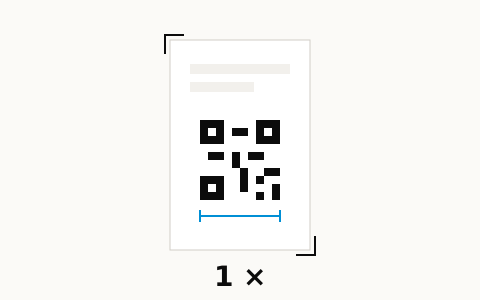
Step 4 of 5
Print one proof
Print a single copy at that size, on the paper or vinyl the run will use. Matt stock scans better than gloss, and a fold or a foil finish across the code can stop it scanning.
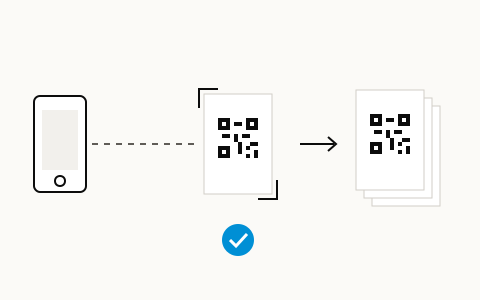
Step 5 of 5
Scan it from the real distance, then print the run
Stand at the distance from step 1 and scan the proof with the oldest phone you can find, in the light it will hang in. If it hesitates, make the code larger and print another proof. When it scans at once, print the run.
No card. Nothing you print here stops working.